

Document Control
The Document Control module manages all controlled documents in your QMS — from quality manuals and procedures to work instructions, forms, and templates.
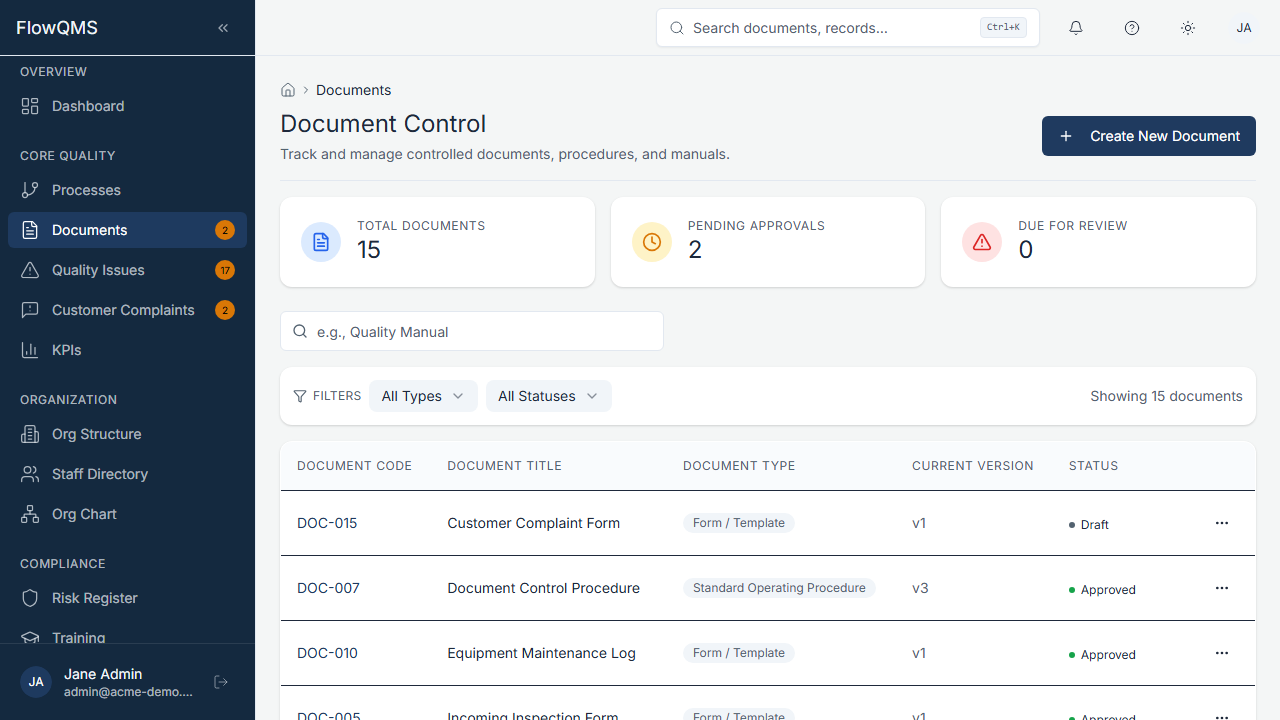
The document control list showing all controlled documents with status, type, and version
Sidebar location: Core Quality > Documents
Document List
The list view shows all documents in your organization with the following columns:
| Column | Description |
|---|---|
| Code | Unique document identifier (e.g., "QP-001") |
| Title | Document name (clickable — opens the detail page) |
| Type | Document classification badge |
| Version | Current version number |
| Status | Current workflow status |
| Actions | View, Edit, Delete buttons |
List Metrics (Top of Page)
Three summary cards above the table:
- Total Documents — Count of all active documents
- Pending Approvals — Documents awaiting review or approval
- Due for Review — Documents that have not been reviewed in over 12 months
Filters
Use the filter dropdowns above the table to narrow results:
- Document Type — Filter by type (e.g., Quality Procedure, SOP, Work Instruction)
- Status — Filter by status (Draft, Pending Review, Approved, Rejected, Obsolete)
Creating a New Document
- Click the "New Document" button (top-right of the list page)
- Fill in the document form:
Basic Information:
| Field | Description | Required |
|---|---|---|
| Title | Document title (max 300 characters) | Yes |
| Code | Document code/number (max 20 characters, e.g., "QP-001") | No |
| Type | Select the document type (see Appendix B) | Yes |
Classification:
| Field | Description | Required |
|---|---|---|
| Category | Select a category (configured by your admin in Settings) | No |
| Process | Link to a business process | No |
Approval Chain:
| Field | Description | Required |
|---|---|---|
| Reviewer | Team member responsible for reviewing | No |
| Approver | Team member responsible for final approval | No |
Content:
| Field | Description | Required |
|---|---|---|
| Description | Document description or abstract (max 2000 characters) | No |
File Attachment:
| Field | Description | Required |
|---|---|---|
| File | Upload the document file. Accepted formats: PDF, DOC, DOCX, XLS, XLSX, PNG, JPG, CSV. Max size: 10 MB. | No |
Additional Details:
| Field | Description | Required |
|---|---|---|
| Primary Scope | What area of the QMS this document covers | No |
| Retention Period | How long the document must be retained | No |
| Confidentiality | Access level: Public, Internal, Confidential, or Restricted | No |
| Applicable Standards | Related standards (e.g., "ISO 9001:2015 Clause 7.5") | No |
- Click "Create Document" to save
Document Approval Workflow
Every document follows a lifecycle workflow:
Draft  →  Pending Review  →  Approved  →  Obsolete
↘ Rejected (returns to Draft)| Status | Description |
|---|---|
| Draft | Document is being prepared. Only the creator and editors can modify it. |
| Pending Review | Document has been submitted for review. The assigned reviewer and approver are notified. |
| Approved | Document has been reviewed and approved. It is now the current effective version. |
| Rejected | Document was not approved. It returns to Draft status with reviewer comments for revision. |
| Obsolete | Document is no longer in effect. It remains in the system for historical reference but is clearly marked as obsolete. |
To submit a document for review:
- Open the document detail page
- Click the approval action button (e.g., "Submit for Review")
- The document status changes to Pending Review and reviewers/approvers are notified
To approve or reject:
- Open the document (you must be the assigned reviewer or approver)
- Review the document content and attached file
- Click "Approve" or "Reject" (with comments if rejecting)
Document Detail Page
The detail page shows comprehensive information organized in tabs:
| Tab | Content |
|---|---|
| Overview | Document metadata, approval chain, current status, description |
| Versions | Version history — see all previous versions, download any version, compare changes |
| Approval History | Full record of all approval actions (who approved/rejected, when, comments) |
| Audit Trail | Field-level change history showing every modification made to this document |
Uploading a New Version
- Open the document detail page
- Click "Upload New Version"
- Select the new file
- The version number increments automatically
- The document returns to Draft status for the new version to go through the approval cycle
Editing a Document
- From the list page, click the Edit button on the document row, or
- From the detail page, click "Edit" in the page header
- Modify any fields
- Click "Save Changes"
TIP
Only documents in Draft or Rejected status can be edited. Approved documents must have a new version uploaded.