

Quality Issues (NCR)
The Quality Issues module (also called NCR — Nonconformity Record) is the heart of your corrective and preventive action system. It tracks nonconformities, corrective action requests, preventive actions, observations for improvement, customer complaints, and supplier corrective action requests.
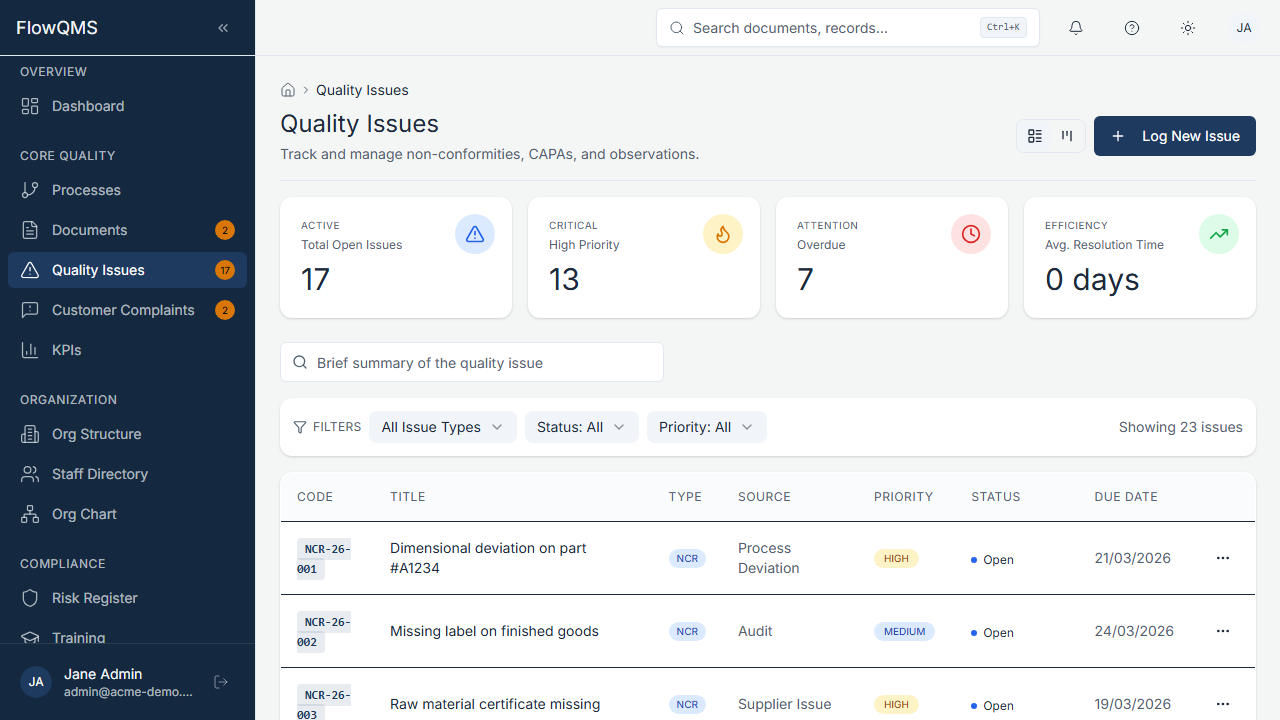
Sidebar location: Core Quality > Quality Issues
NCR List
The list view offers two display modes — toggle between them using the view switcher:
List View (Table)
A standard data table with these columns:
| Column | Description |
|---|---|
| Code | Auto-generated identifier (e.g., "NCR-001") |
| Title | Issue title (clickable) |
| Type | Badge showing the NCR type (NCR, CAR, PAR, OFI, Complaint, SCAR) |
| Source | Where the issue was identified (Audit, Customer, Supplier, etc.) |
| Priority | Color-coded: Critical (red), High (orange), Medium (blue), Low (gray) |
| Status | Current workflow stage |
| Assigned To | Team member responsible |
| Due Date | Target resolution date |
| Actions | View, Edit, Delete |
Kanban View
A visual board with columns representing each workflow stage. NCR cards can be viewed across the stages:
Open → Investigation → Action Planned → In Progress → Verification → Closed → ArchivedEach card shows the NCR code, title, priority indicator, assignee avatar, and due date.
List Metrics (Top of Page)
| Metric | Description |
|---|---|
| Active NCRs | Total open (unresolved) quality issues |
| High Priority | Count of high and critical priority issues |
| Overdue | Issues past their due date |
| Avg. Resolution | Average time to close NCRs (in days) |
Filters
- Type — NCR, CAR, PAR, OFI, Complaint, SCAR
- Status — Open, Investigation, Action Planned, In Progress, Verification, Closed, Archived
- Priority — Low, Medium, High, Critical
Creating a New NCR
- Click "New Quality Issue" (or use the Quick Action on the Dashboard)
- Fill in the form:
Core Fields:
| Field | Description | Required |
|---|---|---|
| Title | Brief summary of the issue (max 200 characters) | Yes |
| Type | NCR, CAR, PAR, OFI, Complaint, or SCAR (see Appendix C) | Yes |
| Source | How the issue was identified: Audit, Customer, Supplier, Process, Inspection, Calibration, KPI, or Manual | Yes |
| Priority | Low, Medium, High, or Critical | Yes |
| Description | Detailed description of the nonconformity (min. 20 characters, max 5000). Use the AI Suggest button for assistance. | Yes |
Assignment:
| Field | Description | Required |
|---|---|---|
| Process | Link to the affected process | No |
| Assigned To | Team member responsible for investigation/resolution | No |
| Due Date | Target date for resolution | No |
| Cost of Quality | Estimated financial impact (numeric, in your organization's currency) | No |
Conditional Fields:
| Field | Shown When | Description |
|---|---|---|
| Customer Name | Source = Customer | Name of the complaining customer |
| Customer Email | Source = Customer | Customer's email address |
| Supplier | Source = Supplier or Type = SCAR | Select the related supplier |
- Click "Log Issue" to create the NCR
NCR Workflow (7 Stages)
Every NCR progresses through a structured 7-stage workflow. Each stage has specific required fields that must be completed before advancing.
Stage 1: Open
The NCR has been logged. The description and basic information are recorded.
- What to do: Review the issue, assign it to an investigator, and begin investigation
- Advance to next stage: Click "Begin Investigation"
Stage 2: Investigation
Determine the root cause of the nonconformity.
| Field | Description | Required |
|---|---|---|
| Root Cause | Detailed root cause analysis (min. 20 characters) | Yes |
| Root Cause Method | Analysis method used: 5-Why, Fishbone (Ishikawa), Fault Tree, Pareto, FMEA, or Other | Yes |
| Containment Action | Any immediate actions taken to contain the issue | No |
- Advance to next stage: Click "Save & Plan Actions"
Stage 3: Action Planned
Define the corrective and preventive actions to address the root cause.
| Field | Description | Required |
|---|---|---|
| Corrective Action | Actions to eliminate the root cause and prevent recurrence (min. 20 characters) | Yes |
| Preventive Action | Actions to prevent similar issues in other areas (min. 20 characters) | Yes |
- Advance to next stage: Click "Save & Begin Implementation"
Stage 4: In Progress
The planned actions are being implemented. No additional fields are required at this stage — this is a working stage where the assigned person carries out the corrective and preventive actions.
- Advance to next stage: Move to verification when implementation is complete
Stage 5: Verification
Verify that the corrective actions were effective and the root cause has been eliminated.
| Field | Description | Required |
|---|---|---|
| Verification Evidence | Evidence that the corrective actions worked (min. 20 characters). Describe how effectiveness was verified. | Yes |
- Advance to next stage: Click "Save & Verify & Close"
Stage 6: Closed
The NCR is resolved. Add final closure notes.
| Field | Description | Required |
|---|---|---|
| Closure Notes | Final summary and lessons learned | Yes |
| Customer Satisfaction Rating | Rating 1-5 (only shown if the source was "Customer") | No |
- Final action: Click "Archive" to move to the archived state
Stage 7: Archived
The NCR is complete and archived for historical reference. All information is read-only.
NCR Detail Page
The detail page is organized in tabs:
| Tab | Content |
|---|---|
| Overview | Current status, metadata, timeline, and key information at a glance |
| Stages | The stage-specific form for the current workflow stage (Investigation, Action Planned, etc.) |
| Metadata | Impact assessment, cost of quality tracking, additional categorization |
| Comments | Threaded discussion — team members can leave comments and updates |
| Attachments | Upload and manage evidence files (photos, reports, test results) |
| Linked Items | Cross-references to related documents, risks, change requests, audits, etc. |
| Audit Trail | Complete field-level change history |
AI Form Assist
When creating or editing an NCR, you will see an AI Suggest button (sparkle icon) next to the Description field. Click it to get AI-powered suggestions for describing the nonconformity based on the type and source you selected.